“There are two types of waiting. There’s the waiting you do for something you know is coming, sooner or later, like waiting for the 6:28pm train, or the school bus, or a party. Then there’s the waiting for something you don’t know is coming. You don’t even know what it is exactly, but you’re hoping for it. You’re imagining it and living your life for it. That’s the kind of waiting that makes a fist in your heart.”
Monday, March 2, 2015

Sunday, March 1, 2015


Lately, I've been into taking random shots and posting them on Instagram. One of my newest craze. Hahaha. And here are my sample shots. Ps. You can follow me too!
Btw, I am finally done with my final demo but I still have 87 hours to fullfill, equivalent to 8-10 days. The kids are taking their 4th and final exam today. And besides, I am going to march this month!!!! The feels for graduation. Yehey!
My exhaustion and tiredness deserves a post. Lol. So here you go.
Sunday, December 7, 2014


Tuesday, December 2, 2014
Teacher Edlyn

I am so happy to share to you guys that I am already starting my "practice teaching" life. 3 months to go and I am so close to my "most awaited" Graduation Day! So yay! I am super extravagant excited about wearing my toga and receiving my diploma and of course posing for my grad pic. But for now, I still wanna savor my practice teaching career moments. Hahaha. So far, I am enjoying teaching and learning new things. I am not so pro of photoshop (so I still have to review and do lots of catching up).
To my classmates, I just wanna say, thank you for everything. We can do this. And of course, let's pray that our God almighty will help us in our Final Demo, help us prepare everything and deal with our-oh-so-stubborn students. And of course, the knowledge, the wisdom! Kudos!
Btw, God led me to a private Christian school. Hahaha. So this is a sign! ♥
Wednesday, November 12, 2014

Food hub

Eating and drinking coffee / tea are my fave hobbies these past few months! After a long and stressful and exhausting and tiring work, charan!!! I spoiled myself too much!
I am really fond of italian and uk drinks! Yay! So I've been into many milk tea / coffee shops and italian restaurants (fast food chains that serves italian food, too *giggles*)
So, I'm gonna give you some of my food shots i posted on my instagram account.
1. Mozzarella and Pepperoni (Italian Sausage, Crumbled Meat Balls, Red Sauce, Garlic) Pizza from Project Pie for only 285php (located at Blue Bay Walk, Macapagal Avenue Corner EDSA, San Jose, Pasay City)
2. The Goodfella Meat Balls and Godfather Pizza from Gotti's Ristorante MOA (i forgot the price but it's a little bit pricey :/ yep. and the sauce, ugh super italian. hahaha. not the usual spaghetti sauce)
3. Home made Pancake with Ice Cream toppings.
4. Java Chip Frappucino Tall from Starbucks Ayala Triangle. For 160php. Yep.
5. Hawaiian Pizza from Pizza Hut MOA
6. Bucket fries of KFC Megamall for only 55php
7. Chicken Medium Buffalo from Pizza Hut MOA for 149php
8. Double Chocolate Chip Frappe Tall from Starbucks Trinoma for 160php <3 (btw, i became a victim of my name in starbucks. which is not new. lol)
9. Large Fries from McDonald's Boni MRT for 60php with Coke float for 25php
10. Infinitea OREO MILK TEA large (Definitely one of the bestssssss) for 80php
11. I definitely forgot what's that dish. Seriously. But that's from a japanese restaurant. Sorry.
12. And wow!!! ARMY NAVY Burger + Burrito (COME IN HUNGRY WALK OUT HAPPY MISSION!!!) I super love their classic single quarter pound burger patty (165php) and freedom fries (75php)! <3
13. The Godfather pizza from Gotti's Ristorante
14. Classic single quarter pound burger patty (165php) from Army Navy
15. COBO Chocolate Milk Tea for 100php (COBO MILK TEA SM DASMARINAS)
16. Coco Fresh Tea SM Manila's best seller 3 buddies! <3 Definitely must try! :)
Here you go. If you wanna check my feed / wanderings / bibliophile life, here's my instagram account (Just click the link. PS. I really don't like taking shots of myself while eating but wanna give a try!)
HAPPY EATING! <3
Friday, October 31, 2014

Saturday, October 18, 2014
Book review: Nakaraanzoned by Rhadson Mendoza

Nakaraanzoned by Rhadson Mendoza | 3.5/5.0
Just like what I promised. I am going to give a book review about the "Nakaraanzoned" of my dearest friend turned into an author. Naks.
Do I need to explain to you what Nakaraanzoned is about? The story focuses on love, story about a young online gamer who still can't believe he already lost his 3 years relationship with the one he loves the most, about moving on and finding someone who he deserves. (I thought of Klai- Rhadson's girlfriend while reading the story. Short-haired girl with a chinita pair of eyes hahahaha.)
Basically, I still couldn't figure out the other plots. Cos they aren't clear to me. As a reader, I had dead air while reading the book. And at some point, I almost got bored while reading it. But you know, this is not a typical story. There's always a twist. I don't wanna spoil you so please buy na lang on your own and read it and judge it.
I recommend this book to my kababayans. Cos the language is tagalog. Lol. It's available at all NBS and Expressions nationwide for only P175, I guess. Hihi.
Synopsis: "Sabi nila, lahat daw ng lalaki ay pare-pareho. Pero handa si Chris, isang part-time student at full-time gamer, na patunayang iba na siya sa mga lalaking iyon, lalo na nang nakilala niya ang isang college student na transferee sa eskuwelahan na pinapasukan niya - si Nikki.
Anong mayroon kay Nikki para mas pillin ni Chris ang realidad kaysa ang larong kinaaadikan niya? Sino si Rayne, at bakit isa siyang school supply? Pero bakit may something na kakaiba kay Daniel sa tuwing lalapit siya kay Rayne?
At bakit ansarap-sarap balikan ang nakaraan kaysa harapin ang kasalukuyan?"

Time is running so fast. It's been 4 months since I started going to dorm. I already miss home. I am a little bit sad going back to dorm after work cos I know Mom isn't around. No one will cook food for me. No one will say, "Take care! Go home early!"
Saturday. Woke up at 6:30am. Set my alarm snooze after 30 mins. But I think I had a deep sleep that I didn't hear my phone ring. I rose 8:30am. Already late. So I decided to skip morning office hours and browsed through my friends' facebook accounts. Sleepy, I tried to sleep but then I couldn't. Packed my things and took a bath. I'm going home now. (Weekly routine) Hihi. But I thought I was too early so I captured few shots from my phone and posted it on my IG account. So yeah. This is my OOTD for today. Simple jeans. I am also wearing my old but super cute shoes! Yay.
I miss mom. I really can't wait to go home and see her.
10.17.14

Boyfriend wasn't able to pick me up after work hours and cancelled our movie plans yesterday. So for "suhol" he bought this book and wahtt! This really made me happy. Tho, I really wanna watch "left behind" huhuhuhu. I guess, next na lang.
I found another reason to lose sleep. HAHAHAHA. Gonna post book review soon!
PS. Hi. Jennifer Smith, finally. I already have a personal copy of your book. I am a little bit sad knowing I saw you and took a picture with you but I didn't get to sign this book. Too late. Hay. Btw, till next time! <3
Friday, October 3, 2014
Jeremiah 29:11

I was waiting for my turn. Window number 1, patient number 50. 10 patients to go. I was a little bit scared and worried. I was afraid of needles, bloods, stitches, doctors and hospital. And yet, I was there. Waiting to be called.
The doctor said they don't know my condition. That, that was the first time they encountered such "bukol" or "lumps" or "bumps" or whatsoever you call it. Instead, they offered me to undergo a surgery. Under anesthesia, of course. At first, I was like, "WHAAAT? AGAD AGAD?" but I kept my mouth shut.
I went home, got rest, and talked to my parents. They said, they would not allow me to undergo that surgery. They want a second opinion. I agreed. So I am planning again to file a leave at work and find a good and reliable hospital. In God's grace.
For now, I am keeping my faith still. I don't even know if my condition is malignant or benign. I trust His plans for me. Whatever it is. I am still hoping.
Jeremiah 29:11
"For I know the plans I have for you", declares the LORD. "Plans to prosper and not to harm you. Plans to give you hope and a future."

It was so good to be back again at Cainta, Rizal. Not to just visit a good friend of mine but also to interview him about his success and his book.
Thank you so much Mr. Rhadson Mendoza for your time and for being thoughtful to our needs and school requirements. Thank you so much for cooperating and answering every question we made for you! You're really awesome and you know how to look back where you came from and stay the same. Super kudos for you and for your family for the warm welcome!
Also, thank you for the free book! The "Nakaraazoned"

I don't need to buy your second book hahaha thank you! (promise, i will take a picture din of your book sa personal. for know, nakaw muna sa wall mo. and promise, i will blog about it and have a review. promise!) hihihihihi. And promise na promise, i will buy your first book and pa-autograph ahh! ♥ Hihi.
Salamat at di ka nagbago sa kung anong nasimulan nating friendship. Thank you kasi pinaunlakan mo ang invitation namin na maisama ka sa docu namin. :-) Sa uulitin. Haha.
Wednesday, September 24, 2014
a fine, sweet, fun night 9.20.14
Me and my highschool buddies, planned to go to the mall last Saturday to have some fun and release our stress from school and office. It's nice to get along with my fave people. I missed them super hard cause we don't really have a time to spend our Saturday like this. Also, I really appreciated their efforts to go to Manila and see me. To my boyfriend, who never leave my side. Thanks to you, too hihihi. so much love.
(Here are some of the photos taken while we are at Market! Market! and SM Aura.)

(While we're having our dinner at Market! Market!)

(Me and my boyfriend doing that gangsta pose. Hahahaha. So cute.)


(My friends were annoyed at me because of my skin complexion. Ang puti ko daw! All thanks to the flash hahahahaha.)


(My boyfriend loves to take pictures of me. Seriously! But I am not gonna post the stolen one. I looked like an alien. Hahahaha.)

(And this is the highlight of our trip. We saw Jennifer E. Smith. The author of "Statistical Probability of Love At First Sight", "The Geography Of You And Me", and "This What Happy Looks Like". I am her super fan hahahahaha lol her books are my faves! Seriously! <3 <3 <3 And she's so approachable. Grabe. I love her to bits. Hihihi.
PS. My highschool buddies still looks like young, They are all adorbs! <3)
All photos were taken by iPod 5th gen so sorry for the low quality. :(
1 Peter 5:7
(oh okay, this is awkward. but i just felt an urge to share this, so yeah)
i was diagnosed for having a tumor inside my body (im not gonna tell which part cos that's very private, if you know what i mean), and it's getting bigger and bigger and bigger and made me cry an ocean. it's hard to even pee or sit or poop and i cant even touch it and examine myself cos super sakit talaga. i am praying so hard cos i am afraid and i am thinking that this is fatal, that this is the reason of my weight loss, my stress, my overthinking. but i am already claiming that He is my healer. i should look on the brighter side.
i was a little bit worried about my condition but God reminded me i should not. i tried searching on the internet for any bible verses applicable in my situation. then there's 1Peter5:7, saying, "Cast all your anxiety on him because he cares for you." aww. great, yeah? i am so blessed and loved. <3 <3
i know God has better plans for me. i know He's just preparing me for a better place. one of these days, i am okay, i am new. i am healed.
Wednesday, September 17, 2014
SIMPLE DAY

I wore my super favorite lee jeans and the flats my boyfriend gave to me and tadaa! I took a photo of it before heading to work.
Thursday, September 11, 2014

(Photographed by Leah Noveno)
Yay! Hooray for these shots. All thanks to my wonderful friend / photographer , Miss Leah Noveno. Also, thanks to Miss Melanie Layos for my cropped polo top and Mr. Emman Noveno for the beanie and eyeglasses as props (hihi) and for my high-waist shorts, tadaaa! I bought that from the thrift shop. Hihi. I also used Ever Bilena, Glam Red Lipstick. The shade of red made me look fiercer. Hihi. So much love! ♥
Tuesday, September 9, 2014
blissful shoot

(Left-Middle by Gwen Olis and Right by Daniel Labayo) Inochi Photography
August 17, 2014 | San Pedro, Laguna
As you can see, I wore 3 different clothes from my last shoot. All thanks to my provider (lol)
These shoots were very complicated. We waited until sunset to make these shots possible. The crew were all exhausted because of the community. There were so many audiences. And from time to time, there were nuisance; asking if we're free so they can share the Word of God. Don't get me wrong. I am also a Christian and I appreciate that deed. It's just that we already entertained the first group, we had to decline the next ones to continue our shoot and finish on time.
I would like to take this opportunity to thank my super awesome photographers! Yay! ♥
Sunday, August 11, 2013
HOW TO APPLY A THEME ON MS POWERPOINT 2007 (TUTORIAL)
Apply a Theme
A theme is a set of colors, fonts, and special effects. Themes provide attractive backgrounds for your PowerPoint slides.
To apply a theme to all of the slides in your presentation:
- Choose the Design tab.
- Click the More button
in the Themes group.
- Click the design you want.
To apply a theme to selected slides:
- Click the Slides tab, located on the left side of the window.
- Hold down the Ctrl key and then click to select the slides to which you want to apply a theme.
- Choose the Design tab.
- Click the More button
- Right-click the theme you want to apply. A menu appears.
- Click Apply to Selected Slides. Excel applies the theme to the slides you selected.
You can add a dramatic effect to your theme by applying a background.
- Choose the Design tab.
- Click the Background Styles button
.
- Click the background you want.
Apply a Theme

- Choose the Design tab.
- Click the More button

- Click the theme you want. PowerPoint applies the theme to all of the slides in your presentation.
Add a Background

- Choose the Design tab.
- Click the Background Styles button
- Click the background you want. PowerPoint applies the background to your slides.
Run Your PowerPoint Slide Show
After you create your slides, you can run your slide show:
- Do any one of the following:
- Press F5.
- Choose the Slide Show tab. Click the From Beginning button
in the Start Slide Show group.
- Click the Slide Show icon in the bottom-right corner of your screen.
Your slide show appears on your screen.
Navigating the Slide Show
| |
| Task | Procedure |
| Go to the next slide. | Do one of the following:
|
| Go to the previous slide. | Do one of the following:
|
| End the slide show and return to PowerPoint. | Press the Esc key. |
Run Your Slide Show
- Press F5 to run the slide show.
- Use the arrow keys on your keyboard to move forward and backward through your slides.
- Use the Esc key to return to Normal view.
References: elmhurst.edu/~jacobh/PowerPoint2007Instruction.ppt / classweb.gmu.edu/llmiller/AOCS/HowtoPPT.ppt
Saturday, August 10, 2013
Powerpoint 2007 Transitions and Animations (TUTORIAL)
Animations control how objects move onto, off of, and around your slides. Transitions control how your presentation moves from one slide to the next. This lesson teaches you how to create animations and transitions.
ADD ANIMATIONS
You can animate the objects on your PowerPoint slides. PowerPoint provides four types of animations: Entrance, Emphasis, Exit, and Motion Paths. An Entrance animation determines the manner in which an object appears on a slide; for example, an object can move onto a slide. An Emphasis animation does something to draw attention to an object; for example, the object can become larger. An Exit animation determines the manner in which an object leaves a slide; for example, an object can move off a slide. A Motion Paths animation determines how an object moves around a slide; for example, an object can move from left to right.
After you add an animation, you can use the Custom Animation pane to modify it by choosing an effect. Choosing an effect enables you to define what starts the animation, its properties (such the direction from which an object moves onto the slide), and control the speed of the animation. In addition, you can have an animation start when you click the mouse, start along with the previous animation, or start at a specified time after the previous animation.
If the Auto Preview box is checked on the Custom Animation pane, PowerPoint provides you with preview of your animation after you create it and each time you modify it. You can also use the Play button on the Custom Animation pane to preview an animation.
To choose an effect:
To modify an effect:
To preview the animation, click the Play button on the Custom Animations pane.
ADD AN ANIMATION TO A SLIDE


 s
s

ADD ANIMATIONS
You can animate the objects on your PowerPoint slides. PowerPoint provides four types of animations: Entrance, Emphasis, Exit, and Motion Paths. An Entrance animation determines the manner in which an object appears on a slide; for example, an object can move onto a slide. An Emphasis animation does something to draw attention to an object; for example, the object can become larger. An Exit animation determines the manner in which an object leaves a slide; for example, an object can move off a slide. A Motion Paths animation determines how an object moves around a slide; for example, an object can move from left to right.
After you add an animation, you can use the Custom Animation pane to modify it by choosing an effect. Choosing an effect enables you to define what starts the animation, its properties (such the direction from which an object moves onto the slide), and control the speed of the animation. In addition, you can have an animation start when you click the mouse, start along with the previous animation, or start at a specified time after the previous animation.
If the Auto Preview box is checked on the Custom Animation pane, PowerPoint provides you with preview of your animation after you create it and each time you modify it. You can also use the Play button on the Custom Animation pane to preview an animation.
To choose an effect:
- Select the object you want to animate.
- Choose the Animations tab.
- Click the Custom Animation button. The Custom Animation pane appears.
- Click the Add Effect button. A menu appears.
- Choose the type of effect you want. A submenu appears.
- Click the effect you want. PowerPoint applies the effect.
To modify an effect:
- Click the down arrow next to the Start field on the Custom Animations pane and then select the start method you want.
- Click the down arrow next to the Property field on the Custom Animations pane and the select the property you want. The Property field might be labeled Direction, Size, or some other property.
- Click the down arrow next to the Speed field on the Custom Animations pane and then select the speed you want to apply to your animation.
To preview the animation, click the Play button on the Custom Animations pane.
ADD AN ANIMATION TO A SLIDE
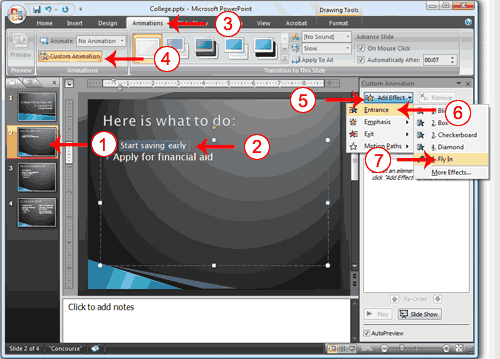
- Click Slide 2 on the Slides tab.
- Select "Start saving early."
- Choose the Animations tab.
- Click the Custom Animation button Custom. The Custom Animation pane appears.
- Click the Add Effect button. A menu appears.
- Choose Entrance. A submenu appears.
- Click Fly In. PowerPoint applies the effect. If the Auto preview box is checked, PowerPoint automatically provides you with a preview of the animation.
MODIFY THE EFFECT
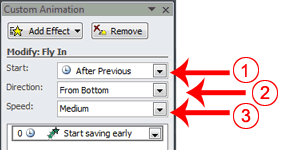
- Click the down arrow next to the Start field and then select After Previous.
- Click the down arrow next to the Direction field and then select From Bottom.
- Click the down arrow next to the Speed field and then select Medium.
ADD ANOTHER ANIMATION
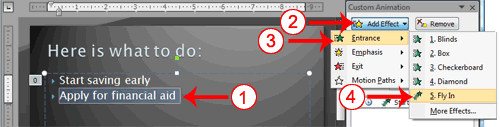
- Select "Apply for financial aid."
- Click the Add Effect button. A menu appears.
- Choose Entrance. A submenu appears.
- Click Fly In. PowerPoint applies the effect. If the Auto preview box is checked, PowerPoint automatically provides you with a preview of the animation.
MODIFY THE ANIMATION
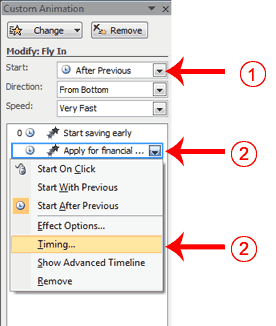
- Click the down arrow next to the Start field and then select After Previous. The Apply for Financial Aid field appears in the center of the Custom Animation pane.
- Click the down arrow next to the Apply for Financial Aid field and then click Timing. The Fly In dialog box appears.
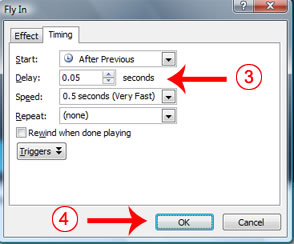
- Type 0.05 in the Delay text box.
- Click OK.
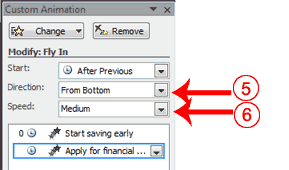
- Click the down arrow next to the Direction field and then select From Bottom.
- Click the down arrow next to the Speed field and then select Medium. If the Auto preview box is checked, PowerPoint automatically provides you with a preview of the animation. You can click the Play button
on the Custom Animation pane at anytime to preview an animation.
Add Transitions
Transitions determine how your presentations move from one slide to the next. For example, a slide can move up onto the screen and replace the previous slide. PowerPoint provides several transition methods. You can add sound to a transition and you can control its speed. You can apply a transition to selected slides or to all of the slides in your presentation.
A transition can occur when the presenter clicks the mouse or after the amount of time you specify.
To apply a transition to selected slides:
- On the Slides tab, hold down the Ctrl key and then click the slides to which you want to apply the transition.
- Choose the Animations tab.
- Click the More button
- Click the transition you want to apply. PowerPoint applies the transition. As you roll your pointer over each transition, PowerPoint provides you with a live preview of the transition.
To apply a transition to all slides:
- Choose the Animations tab.
- Click the More button
- Click the transition you want to apply. As you roll your pointer over each transition, PowerPoint provides you with a live preview of the transition.
- Click the Apply to All button
in the Transition to This Slide group.
To add a sound to a transition:
- Choose the Animations tab.
- Click the down arrow next to the Transition Sound field and then click the sound you want. As you roll your pointer over each sound, PowerPoint plays the sound.
To set the speed of a transition:
- Choose the Animations tab.
- Click the down arrow next to the Transition Speed field and then click the speed you want.
If you want the transition to occur after the presenter clicks the mouse, check the On Mouse Click check box. If you want a transition to occur after a specified period of time, check the Automatically After check box and then specify the amount of time you want to elapse before the transition occurs. The On Mouse Click check box and the Automatically After check box are both located on the Animations tab in the Transition to This Slide group.
Add Transitions
- Choose the Animations tab.
- Click the More button
s- Click the Push Up transition. As you roll your pointer over each transition, PowerPoint provides you with a live preview of the transition.
Add Sound and Set the Speed
- Click the down arrow next to the Transition Sound field and then click Click.
- Click the down arrow next to the Transition Speed field and then click Slow.
Advance Slide

- Check the On Mouse Click check box.
- Click the Automatically After check box.
- Type 00:07 in the Automatically After text box.
- Click the Apply to All button
- Click Slide 1 on the Slides tab.
- Type 00:03 in the Automatically After text box. PowerPoint changes the timing for Slide 1.
References: elmhurst.edu/~jacobh/PowerPoint2007Instruction.ppt / classweb.gmu.edu/llmiller/AOCS/HowtoPPT.ppt
Subscribe to:
Posts (Atom)